GenTech Discount Rules Documentation
Introduction
What the plugin does, what it needs, and where it fits in your WooCommerce store.
Welcome
Thanks for using GenTech Discount Rules. It adds a rules-based promotions engine to WooCommerce: BOGO offers, free gifts, cart discounts, bulk (tiered) pricing and coupon-code offers, all built from the same simple pattern — what the customer must buy and what the customer gets. This guide is for store owners and developers. No coding is needed to create promotions; the Developer Hooks section is optional.
What’s Included
Rule builder
A visual editor for conditions, rewards, schedule, priority, limits and customer messages.
Promotions engine
Applies rules live while the cart is calculated — works with the classic cart and the Cart & Checkout blocks.
Starter templates
Eleven ready-made promotions (Buy 2 Get 1, spend-and-save, free gift, bulk pricing…) you can start from in one click.
This documentation
A single offline HTML file — open it directly in any browser, no server required.
Features
- BOGO offers — Buy X Get X and Buy X Get Y, based on a product or a category in the cart.
- Free gifts — add a free product automatically once the customer qualifies.
- Cart discounts — fixed amount or percentage off the cart.
- Bulk / tiered pricing — e.g. 5+ items save 10% each, 10+ items save 15% each.
- Coupon-code offers — unlock a reward with a code, without creating a WooCommerce coupon.
- Five conditions — product in cart, category in cart, cart subtotal, total cart quantity, coupon code applied.
- Priority and “Stop Other Rules” to control the order rules run in and prevent discount stacking.
- Scheduling with start and end dates.
- Limits — customer limit, require login, skip when the cart has sale items.
- Live promotion messages with placeholders, e.g. “Spend {remaining_amount} more to get {free_product} free!”.
Requirements
| Software | Minimum version | Notes |
|---|---|---|
| WordPress | 6.0 | Tested up to 7.1 |
| WooCommerce | 8.0 | Must be installed and active |
| PHP | 7.4 | PHP 8.x recommended |
Compatibility
GenTech Discount Rules works alongside WooCommerce coupons and most coupon plugins. If you run another discount plugin, test your offers together on a staging site first.
Getting Started
Install the plugin and have your first promotion running in a few minutes.
Install from WordPress
- In your WordPress admin, go to Plugins → Add New Plugin.
- Search for GenTech Discount Rules.
- Click Install Now, then Activate.
- A new GenTech Discount Rules menu appears in the admin sidebar.
Upload the ZIP
If you have the plugin ZIP file instead:
- Go to Plugins → Add New Plugin → Upload Plugin.
- Choose
gentech-promo-engine.zipand click Install Now. - Click Activate Plugin.
Or upload the extracted gentech-promo-engine folder to /wp-content/plugins/ by FTP and activate it from the Plugins screen.
Install and activate WooCommerce first. On activation the plugin creates its own database tables and adds the manage_gentech_promo_engine capability to administrators.
Your First Promotion
- Go to GenTech Discount Rules → Starter Templates.
- Pick a template, e.g. Spend $100, Get 10% Off. The editor opens with the conditions, reward and messages already filled in.
- Adjust the amounts (and choose products, if the template needs them).
- Click the status button next to Summary and choose Published.
- Click Save Changes.
- Add products to your cart on the storefront to see the offer apply.
Click Summary in the editor to see a plain-language description of what the rule will do.
How Promotions Work
Every promotion is a rule: conditions decide if it applies, rewards decide what the customer gets.
Each time WooCommerce recalculates the cart (adding an item, changing a quantity, applying a coupon), the plugin:
- Loads all published rules that are inside their schedule, ordered by priority (lowest number first).
- Checks each rule’s eligibility and conditions against the current cart.
- Applies the rewards of every rule that qualifies — adding free items, setting bulk prices and adding discount lines.
- Stops early if a rule that applied has Stop Other Rules turned on.
- Removes rewards from rules that no longer qualify (for example, after an item is removed).
When a rule has several conditions, the customer must meet all of them. To offer the same reward for different situations, create separate rules.
Promotion Rules List
Your dashboard of every promotion, at GenTech Discount Rules → Promotion Rules.
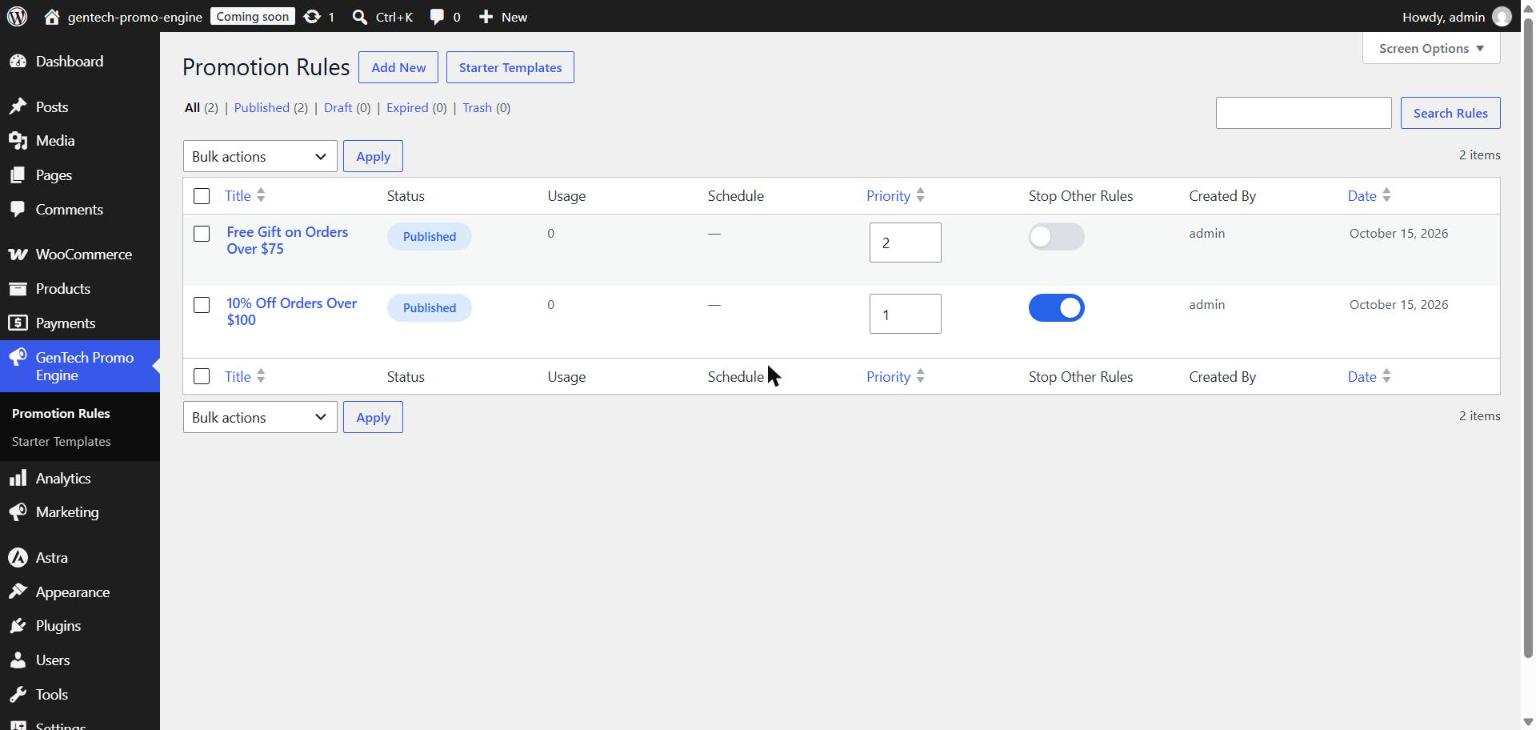
Columns
| Column | What it shows |
|---|---|
| Title | Rule name. Hover to see Edit and Trash links. |
| Status | Published (live), Draft (not live) or Expired (schedule end date has passed). |
| Usage | How many orders have used the rule. |
| Schedule | Start and end dates, or — if the rule always runs. |
| Priority | Editable inline — type a new number and it saves automatically. |
| Stop Other Rules | Toggle inline — saves automatically. See Priority & Stacking. |
| Created By / Date | The admin who created the rule and when. |
Filters & Bulk Actions
- Use the All / Published / Draft / Expired / Trash links to filter the list.
- Use Search Rules to find a rule by name.
- Select rules with the checkboxes and use Bulk actions to publish them, move them to draft, mark them expired, trash them, or (in Trash) restore or permanently delete them.
- Click the Title, Priority or Date column headings to sort.
Rule Editor
Create a rule with Add New, or click a rule’s title to edit it.
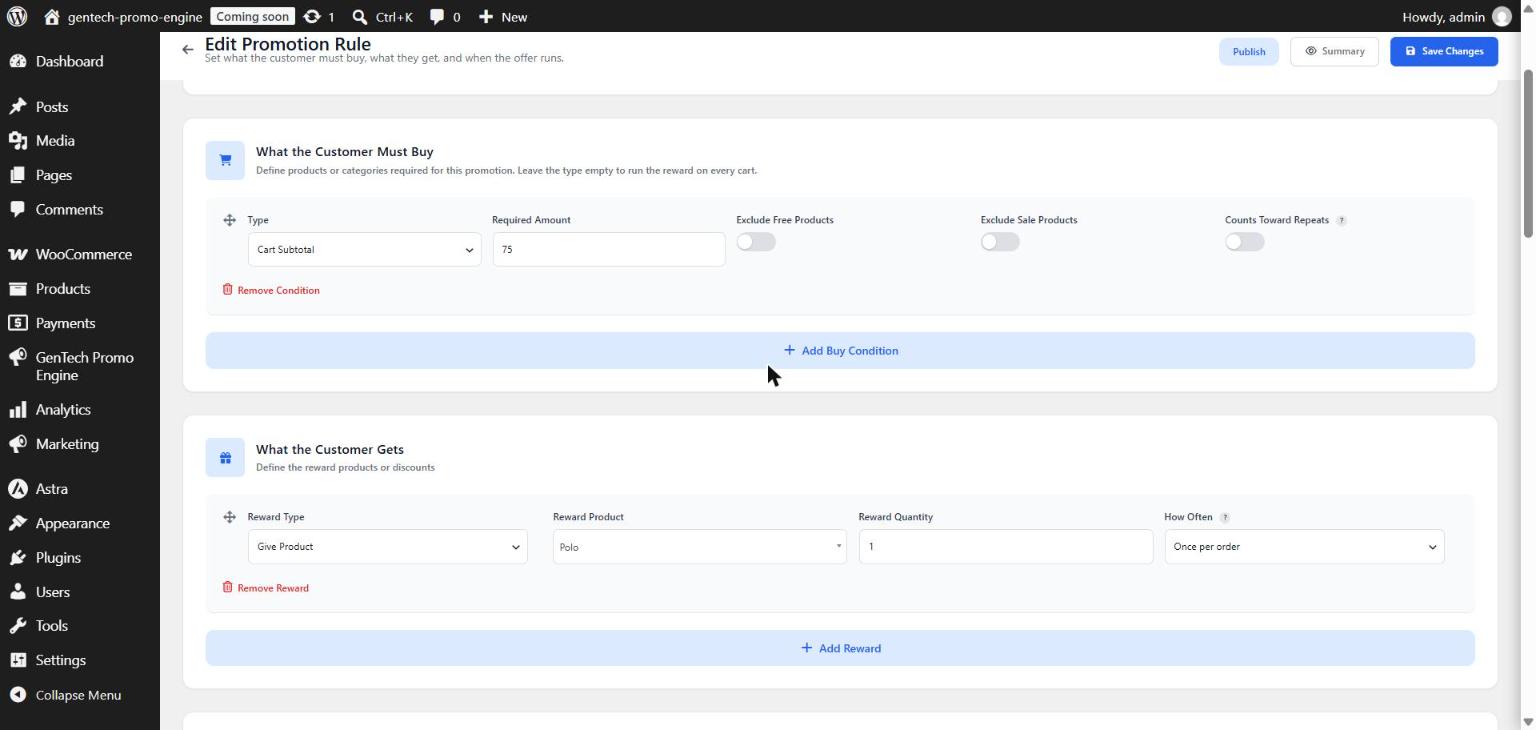
Editor Sections
| Section | Purpose |
|---|---|
| Rule Title | An internal name, shown in the rules list. |
| What the Customer Must Buy | Conditions. Leave the type empty to apply the reward on every cart. See Conditions. |
| What the Customer Gets | Rewards. See Rewards. |
| Schedule | Optional start and end date. See Scheduling. |
| Priority & Stacking | Run order and Stop Other Rules. See Priority & Stacking. |
| Rule Eligibility | Sale items, customer limit, require login. See Eligibility & Limits. |
| Promotion Messages | Notices shown to customers. See Promotion Messages. |
Toolbar Buttons
- Status (shows Draft or Publish) — opens the Update Status panel: Published, Draft, Expired or Trash.
- Summary — a plain-language preview of what the rule does.
- Save Changes — saves the rule. A rule only runs on the storefront when its status is Published.
Rows in the conditions and rewards sections can be reordered by dragging the ✥ handle, and removed with Remove Condition / Remove Reward.
Conditions
Conditions live under What the Customer Must Buy. Add as many as you need — all must be met.
Condition Types
| Type | Met when… | Fields |
|---|---|---|
| Product In Cart | The chosen product is (or is not) in the cart in the required quantity. | Condition Match, Required Product, Required Quantity, Counts Toward Repeats |
| Category In Cart | Products from the chosen category are (or are not) in the cart in the required quantity. | Condition Match, Required Category, Required Quantity, Counts Toward Repeats |
| Cart Subtotal | The cart subtotal reaches the required amount. | Required Amount, Exclude Free Products, Exclude Sale Products, Counts Toward Repeats |
| Total Cart Quantity | The total number of items in the cart reaches the required quantity. | Required Quantity, Exclude Free Products, Exclude Sale Products, Counts Toward Repeats |
| Coupon Code Applied | The customer has entered the code in the cart. | Coupon Code (one per rule) |
Condition Options
| Option | What it does |
|---|---|
| Condition Match | In cart requires the product/category; Not in cart requires it to be absent (e.g. “offer only if the customer hasn’t already added the gift”). |
| Exclude Free Products | Free reward items don’t count toward the subtotal or quantity. |
| Exclude Sale Products | Items that are already on sale don’t count toward the subtotal or quantity. |
| Counts Toward Repeats | When a reward is set to Repeat for every set bought, this condition decides how many times it repeats. Example: Buy 2 Get 1 with 4 in the cart gives 2 free items. |
Add two Product In Cart conditions (product A and product B) and a Cart Discount (%) reward. The discount applies only when both products are in the cart.
Rewards
Rewards live under What the Customer Gets. A rule can give several rewards at once.
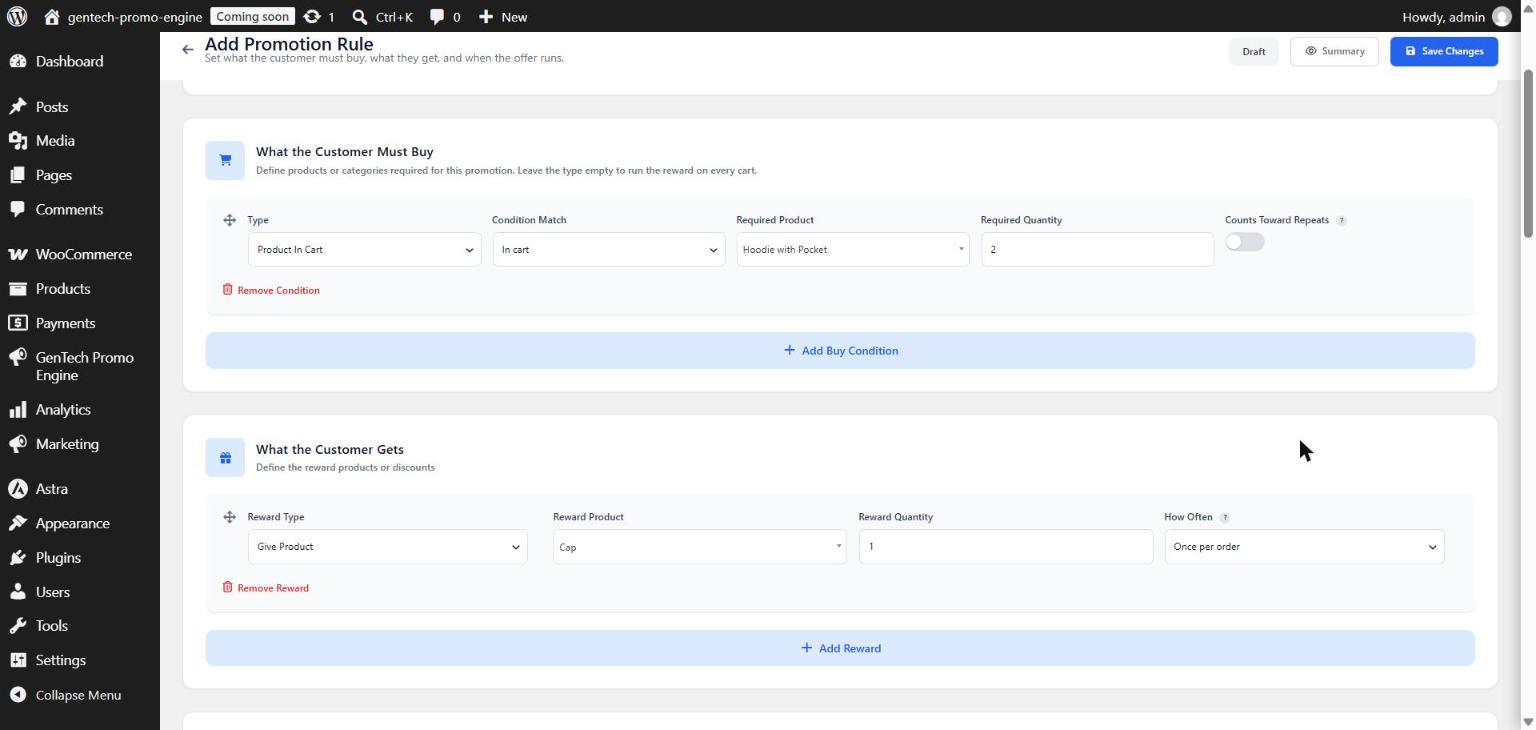
Reward Types
| Reward Type | What the customer gets | Fields |
|---|---|---|
| Give Product | A product added to the cart for free (BOGO or free gift). | Reward Product, Reward Quantity, How Often |
| Cart Discount (Fixed Amount) | A fixed amount off the cart. | Cart Discount Label, Discount Amount |
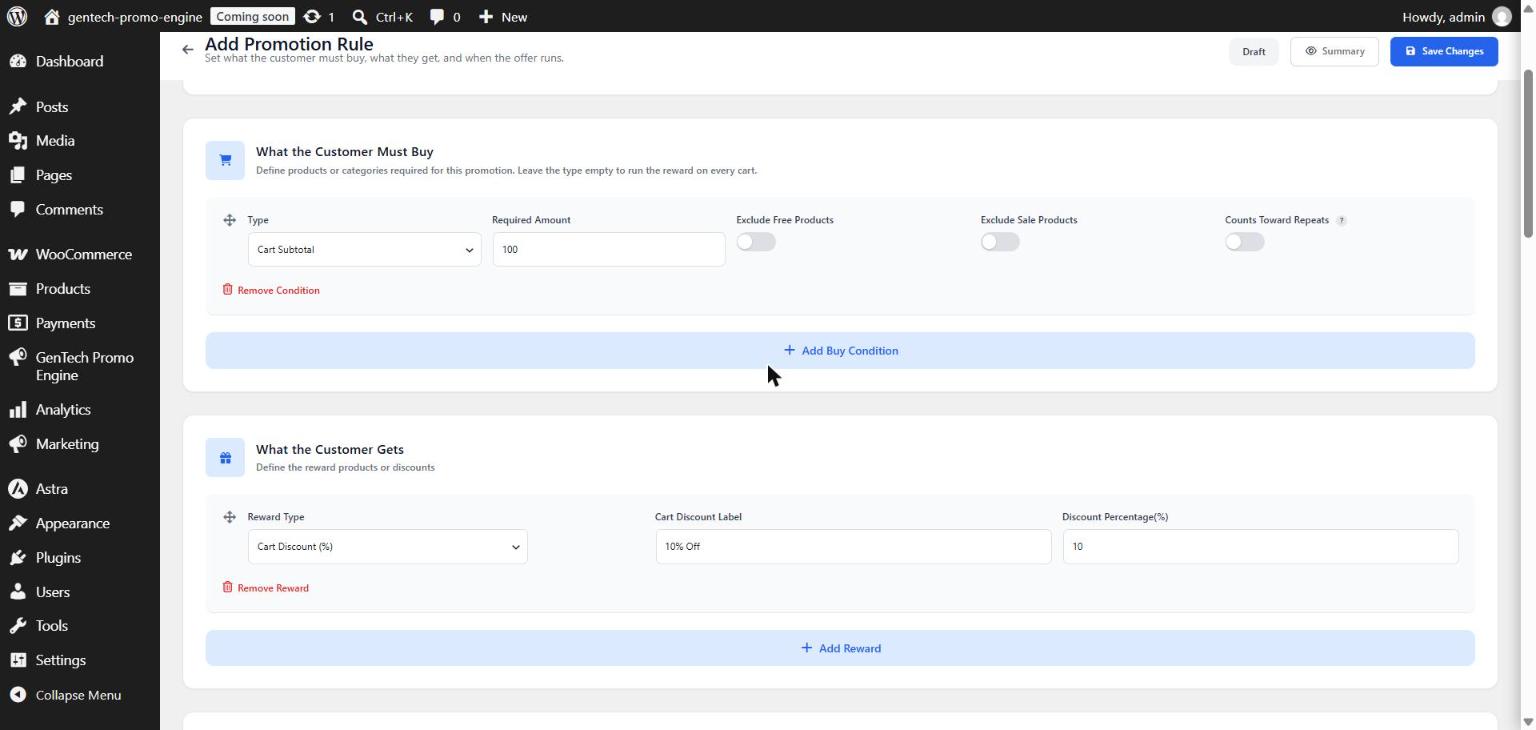
| Cart Discount (%) | A percentage off the cart. | Cart Discount Label, Discount Percentage |
| Bulk Discount: Product | A lower price per item for a product once a minimum quantity is reached. | Product, Minimum Quantity, Discount Type, Discount Value |
| Bulk Discount: Category | A lower price per item for a category once a minimum quantity is reached. | Category, Minimum Quantity, Discount Type, Discount Value |
How Often (Give Product)
- Once per order — the free product is given one time, however much the customer buys.
- Repeat for every set bought — the reward multiplies for each full set of required items. Buy 2 Get 1 with 4 in the cart gives 2 free; with 6 it gives 3.
Cart Discount Label
The label is what the customer sees on the discount line in the cart, checkout and order — for example 10% Off or Summer Sale.
Bulk Pricing
“Buy more, save more” — a lower price on every matching item once the customer buys enough.
Setting Up Tiers
Add one Bulk Discount reward row per tier, all pointing at the same product or category:
| Row | Reward Type | Category | Minimum Quantity | Discount Type | Discount Value |
|---|---|---|---|---|---|
| 1 | Bulk Discount: Category | Hoodies | 5 | % off each item | 10 |
| 2 | Bulk Discount: Category | Hoodies | 10 | % off each item | 15 |
- Quantities are counted across all matching items in the cart (different hoodies add up).
- The highest tier reached wins and applies to every matching item: 7 hoodies get 10% off each; 12 get 15% off each.
- Discount Type can be % off each item or Fixed amount off each item.
- The discounted price is shown on the cart line itself, and the original price comes back as soon as the customer drops below the minimum.
The Bulk Pricing: 5+ Save 10%, 10+ Save 15% starter template sets up both tiers — just choose your category.
Coupon-Code Offers
Unlock any reward with a code the customer types in the cart — no WooCommerce coupon to create.
Setting Up a Code
- Add a Coupon Code Applied condition and type the code, e.g.
FREEGIFT. - Add the reward(s) — a free product, a cart discount, or both.
- Publish and save. Customers enter the code in the normal Coupon code box in the cart or checkout.
The plugin registers the code with WooCommerce for you as a zero-value coupon, so WooCommerce accepts it. The actual reward comes from your rule.
If a real WooCommerce coupon with the same code exists, the real coupon wins and its own settings apply. Use a unique code for each rule.
Add a Cart Subtotal condition next to the code to make it “code + minimum spend”. All conditions must be met.
Scheduling
Run a promotion only between two dates — ideal for weekend sales and seasonal campaigns.
Start & End Dates
- Start date — the rule does nothing before this date and time.
- End date — the rule stops after this date and time and shows as Expired in the rules list.
- Leave both empty to run the rule for as long as it’s published.
Dates use your site’s timezone from Settings → General. The rule must also be Published; a draft never runs, even inside its schedule.
Priority & Stacking
Decide which promotions run first and whether customers can combine them.
Priority
Lower numbers run first: a rule with priority 1 runs before one with 10. Change it in the editor or directly in the rules list.
Stop Other Rules
When a rule with Stop Other Rules turned on applies, every lower-priority rule is skipped for that cart. If the rule doesn’t qualify, the next rules run as normal.
10% Off Orders Over $100 (priority 1, Stop Other Rules on) and Free Gift on Orders Over $75 (priority 2). A $120 cart gets only the 10% off. An $80 cart gets the free gift, because the first rule didn’t apply.
With Stop Other Rules off on every rule, all qualifying rules apply together (they stack).
Eligibility & Limits
Restrict who can use an offer and how often it can be used.
| Setting | What it does |
|---|---|
| Skip When Cart Has Sale Items | The rule won’t apply if any product in the cart already has a sale price. |
| Customer Limit | Only the first N customers get this offer. Leave empty for unlimited. |
| Require Login | Only logged-in customers can get the offer. |
How Usage Is Counted
- Usage is recorded when an order containing the promotion is placed.
- Each customer counts once per rule: logged-in customers by their account, guests by their billing email.
- If the order is later cancelled, failed or refunded, the usage is released, so the place goes back to the pool. If the order becomes paid again, it’s counted again.
Promotion Messages
Nudge customers to qualify with live notices — “Spend $25 more to get a free cap!”
Before & After Qualifying
- Before Qualifying — shown while the cart doesn’t meet the conditions yet.
- After Qualifying — shown once the reward is applied.
For each message, choose where it appears: Show on Shop Page, Show on Cart Page and/or Show on Checkout Page. Messages update automatically when the cart changes, without a page reload, in both the classic cart and the Cart & Checkout blocks. Leave a message empty to show nothing.
Placeholders
Placeholders are replaced with live values from the customer’s cart. A placeholder with nothing to show is left blank.
| Placeholder | Replaced with |
|---|---|
{remaining_amount} | Amount still needed to reach the cart subtotal condition |
{remaining_qty} | Items still needed for the first unmet product, category or cart quantity condition |
{product} | Product from the “Product In Cart” condition, or the bulk discount product |
{category} | Category from the “Category In Cart” condition, or the bulk discount category |
{coupon} | Code from the “Coupon Code Applied” condition |
{free_product} | Free product(s) given by the rule |
{discount} | Discount given by the rule, e.g. 10% or $5.00 (for bulk pricing: the first tier, per item) |
# Before qualifying
Spend {remaining_amount} more to get {free_product} free!

# After qualifying
Congrats! {free_product} has been added to your cart for free.
Messages accept basic HTML such as <strong> and links.
Starter Templates
Ready-made promotions at GenTech Discount Rules → Starter Templates. Conditions, rewards, amounts and messages are pre-filled — choose your products and save.
| Template | Level | What it does |
|---|---|---|
| Spend $100, Get 10% Off | Simple | Percentage discount once the subtotal reaches a threshold |
| Spend $50, Save $5 | Simple | Fixed amount off once the subtotal reaches a threshold |
| Free Gift on Orders Over $75 | Simple | Adds a free product when the subtotal reaches a threshold |
| Free Gift with Code FREEGIFT | Simple | Customers who enter a code get a free product |
| Buy 2 Get 1 Free | Intermediate | Buy two of a product, get one more free; repeats for every 2 bought |
| Buy A Get B Free | Intermediate | When a product is in the cart, add a different product free |
| Buy 2 From Category, Get a Free Gift | Intermediate | Buy 2 items from a category and get a chosen product free |
| Bulk Pricing: 5+ Save 10%, 10+ Save 15% | Intermediate | Tiered per-item discount for a category |
| 15% Off: 3+ From Category and Big Spend | Advanced | 3+ items from a category and $100+ subtotal gives 15% off |
| Bundle: Buy A + B, Get 10% Off | Advanced | Buy two specific products together for 10% off the cart |
| Free Item for Every $50 Spent | Advanced | One free product per $50 spent — $100 gets two |
Amounts use your store’s currency symbol. Templates open as a new Draft, so nothing goes live until you publish it.
Cart & Checkout
What customers see, and what’s saved on the order.
Free Items in the Cart
- Free products are added automatically at a price of zero and labelled Offer: Free item.
- Their quantity is locked, and they can’t be removed separately — they follow the rule.
- If the cart stops qualifying, the free items are removed automatically.
Discount Lines
Cart discounts appear as a negative line (a WooCommerce fee) using your Cart Discount Label. Bulk discounts change the item’s price directly on the cart line.
Order Data
When the order is placed, the promotion is stored with it: free items, bulk-priced items and discount lines are marked with the rule that created them, and usage is recorded for limits. This works for both the classic checkout and the Checkout block.
Developer Hooks
Filters for customizing the plugin from a theme or a small custom plugin.
Filters
| Filter | Purpose |
|---|---|
gentech_promo_engine_rule_templates | Add, change or remove starter templates |
gentech_promo_engine_usage_released_statuses | Order statuses that release a rule’s usage (default: cancelled, failed, refunded) |
gentech_promo_engine_condition_types | Condition types shown in the editor |
gentech_promo_engine_action_types | Reward types shown in the editor |
gentech_promo_engine_before_save_rule / _before_update_rule | Filter the submitted rule data before it’s saved |
gentech_promo_engine_get_active_rules_where / _order_by | Change which published rules load on the storefront, and in what order |
gentech_promo_engine_get_rule_where, _get_all_rules_where / _order_by / _limit | Adjust database queries for single rules and rule lists |
gentech_promo_engine_promotion_rule_row_actions | Add links under a rule’s title in the rules list |
gentech_promo_engine_show_save_button | Hide the Save Changes button for a rule |
Example: Release Usage on More Statuses
add_filter( 'gentech_promo_engine_usage_released_statuses', function ( $statuses ) {
    $statuses[] = 'on-hold'; // also free the place for on-hold orders
    return $statuses;
} );
Example: Add a Starter Template
add_filter( 'gentech_promo_engine_rule_templates', function ( $templates ) {
    $templates['spend_200_get_20'] = array(
        'level'       => 'simple', // simple | intermediate | advanced
        'label'       => 'Spend $200, Get 20% Off',
        'description' => 'A big-spender discount.',
        'title'       => '20% Off Orders Over $200',
        'messages'    => array(
            'before' => 'Spend {remaining_amount} more and get {discount} off!',
            'after'  => 'You unlocked {discount} off your order!',
        ),
        'rule_data'   => array(
            'conditions' => array(
                array( 'condition_type' => 'cart_subtotal', 'condition_qty' => 200 ),
            ),
            'actions'    => array(
                array(
                    'action_type'         => 'cart_discount_percentage',
                    'action_qty'          => 20,
                    'cart_discount_label' => '20% Off',
                ),
            ),
        ),
    );
    return $templates;
} );The type filters control what the editor lists. A condition type the engine doesn’t know makes the rule fail, and an unknown reward type is skipped — so only list types that something actually evaluates.
Privacy & Data
What the plugin stores, and how to export, erase or remove it.
Data Stored
| Table | Contents |
|---|---|
{prefix}gentech_promo_engine_promotion_rules | Your promotion rules and settings |
{prefix}gentech_promo_engine_promotion_usage | One row per order that used a rule: user ID, email, billing email, order ID and guest IP — used for limits |
{prefix}gentech_promo_engine_rule_groups | Rule groups (internal) |
WordPress Privacy Tools
- Suggested text is added to Settings → Privacy → Policy Guide.
- Tools → Export Personal Data includes the customer’s promotion usage.
- Tools → Erase Personal Data anonymizes it.
The plugin doesn’t send any data to external services.
Deactivate vs. Delete
Deactivating keeps your rules. Deleting the plugin from the Plugins screen drops all three tables (rules and usage history) and removes the plugin’s capability. Export or note your rules first if you may reinstall.
Troubleshooting
The most common problems, and how to fix them.
The promotion doesn’t apply
- Cause
- The rule is a draft or expired, its schedule hasn’t started, one of its conditions isn’t met, or a higher-priority rule with Stop Other Rules applied first.
- Solution
- Check the status is Published, review the dates, open Summary to confirm the conditions, and check the priority of your other rules.
The free product isn’t added
- Cause
- WooCommerce can’t add the reward product to the cart — usually because it’s out of stock, private, or has no price.
- Solution
- Use a published, in-stock product with a price as the reward.
Customer limit reached too early
- Cause
- Test orders count toward the limit.
- Solution
- Cancel or refund the test orders — their usage is released automatically.
Coupon code says “does not exist”
- Cause
- The rule with the Coupon Code Applied condition is not published or is outside its schedule.
- Solution
- Publish the rule and check its dates. Codes are only registered for active rules.
Messages don’t show
- Cause
- The message is empty, its page toggles are off, or the theme removes WooCommerce notice areas.
- Solution
- Fill in the message, turn on Show on Shop / Cart / Checkout Page, and test with a default theme such as Storefront to rule out the theme.
Discounts look wrong with another discount plugin
- Cause
- Two plugins are changing the same cart prices.
- Solution
- Temporarily deactivate the other plugin to confirm, then use one plugin per offer type.
Cart changes are slow or prices look stale
- Cause
- A page-cache plugin or CDN is caching the cart or checkout page.
- Solution
- Exclude the cart, checkout and my-account pages from caching (WooCommerce’s standard recommendation).
FAQ
Quick answers to the questions we hear most.
Does it work with any WooCommerce theme?
Yes. It uses standard WooCommerce hooks and works with the classic cart and checkout as well as the Cart & Checkout blocks.
Can I run several promotions at once?
Yes. All qualifying rules apply together unless one has Stop Other Rules turned on — see Priority & Stacking.
Is there a limit on how many promotions I can create?
No. Create as many rules as you need.
Do I need to create a WooCommerce coupon for coupon-code offers?
No — the plugin registers the code for you. See Coupon-Code Offers.
How do bulk pricing tiers work?
Add one Bulk Discount row per tier for the same product or category. The highest tier reached applies to every matching item — see Bulk Pricing.
Can the customer remove a free item?
No. Free items are controlled by the rule and are removed automatically when the cart stops qualifying.
Does it slow down my store?
Active rules are cached, and the plugin only does work while the cart is calculated, so the impact on page speed is minimal.
Will I lose my promotions if I deactivate the plugin?
No. Deactivating keeps everything. Only deleting the plugin removes its data — see Deactivate vs. Delete.
Is it translation ready?
Yes. The text domain is gentech-promo-engine and a .pot template is included in the languages folder.
Where can I get support?
See the Support section.
Changelog
Every notable change, newest first.
- ChangedPlugin renamed from GenTech Promo Engine to GenTech Discount Rules – BOGO & Free Gifts. Rules and settings are unchanged.
- AddedInitial release.
- AddedBOGO and free gift rewards.
- AddedFixed and percentage cart discounts.
- AddedBulk / tiered pricing for products and categories.
- AddedProduct, category, cart subtotal, cart quantity and coupon-code conditions.
- AddedRule scheduling, priority and Stop Other Rules.
- AddedPromotion messages with live placeholders.
- AddedStarter templates.
Support
Stuck on something this guide didn’t cover? Here’s how to reach us.
Documentation
Most questions are answered somewhere in this guide — try the search (Ctrl K) before reaching out.
Back to topSupport forum
Ask on the WordPress.org support forum. Please don’t post passwords or private store details.
Open support forumRate the plugin
Enjoying GenTech Discount Rules? A review on WordPress.org helps other store owners find it.
What to Include in a Support Request
The fastest way to get a useful answer is to include the details below in your first message:
When asking for support, please include:

- GenTech Discount Rules version
- WordPress and WooCommerce versions
- PHP version (WooCommerce > Status)
- Theme name, and whether you use the Cart/Checkout blocks
- The rule's conditions and rewards (a screenshot helps)
- What you expected and what happened instead